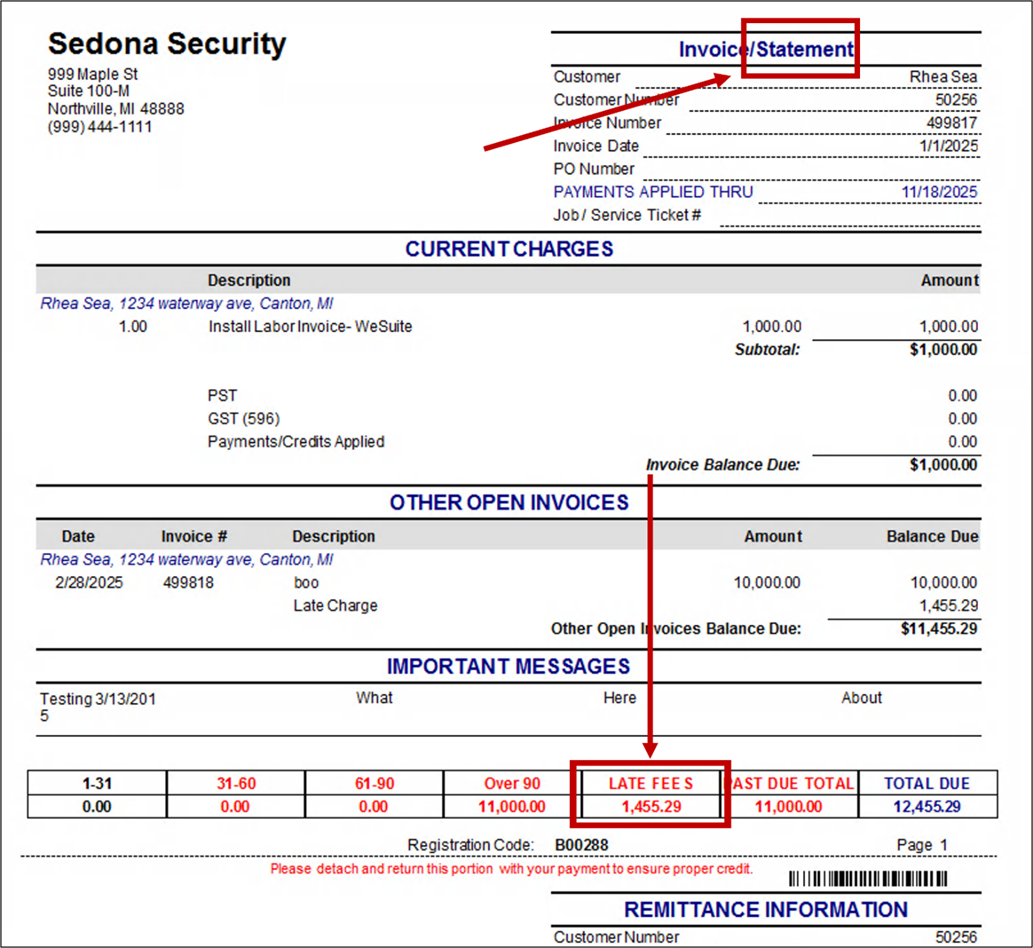
How to get Late Fees to show on statements and in the statement detail section of an invoice –
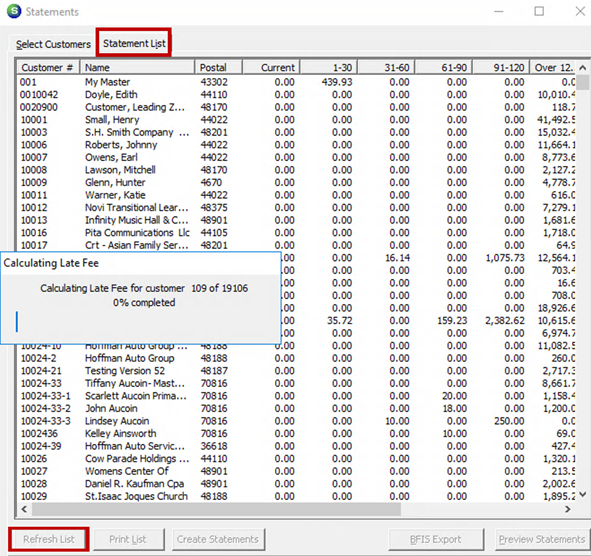
- Navigate to Accounts Receivable – Statements
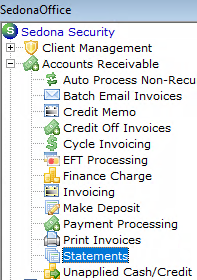
2. Enter your statement criteria and make sure to check the box for ‘Recalculate and Show Late Fees’
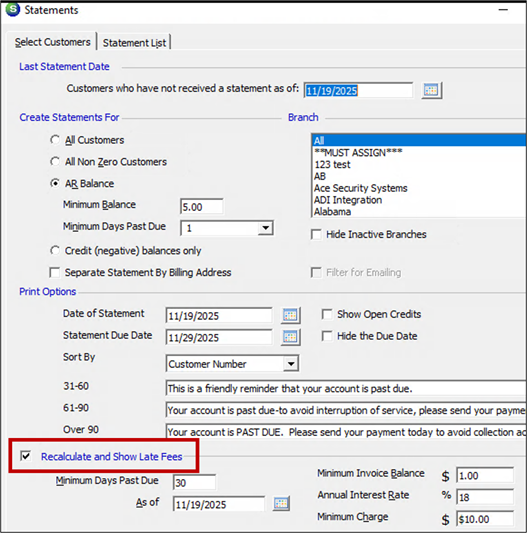
3. Go to the second Statement List tab and refresh the list
4. The system will recalculate the late fees. If you wish to print statement you may continue the statement process, otherwise you can close the statements window.
5. Pull up the customer’s account
6. Double-click on the invoice you wish to send to the customer
7. Click the Print Preview button in the top icon bar of SedonaOffice
8. Not all invoice forms give the option to show statement level late fees, so make sure to select one that does. In this example Bridgestone Standard was used.
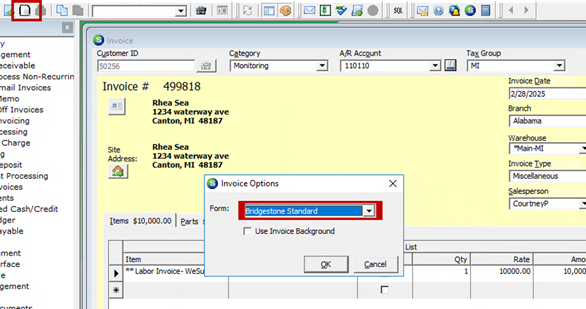
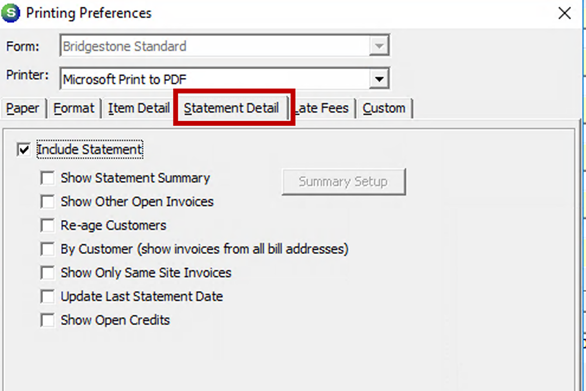
9. If you have have chosen an invoice form with the statement detail option then you will be able to navigate to the Statement Detail tab in the Printing Preferences window.
10. Check the box to Include Statement.
11. Check the box to Show Statement Summary, and any other boxes as needed.
12. Navigate to the Late Fees tab
13. Check the box “Show Late Fees”. Do NOT select the box to recalculate late fees.
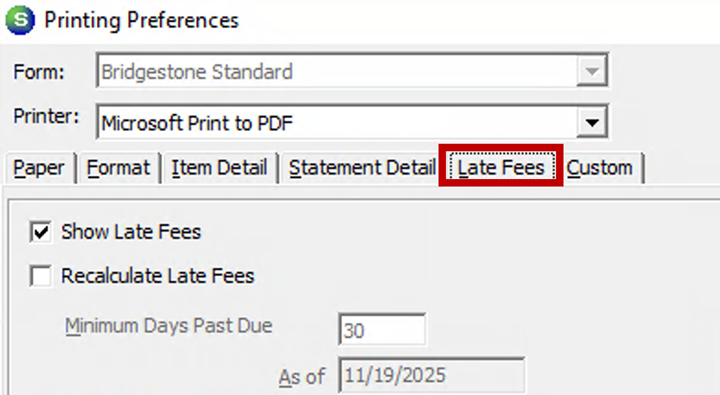
13. Click OK and your invoice will print with the statement detail, including the statement level late fee.