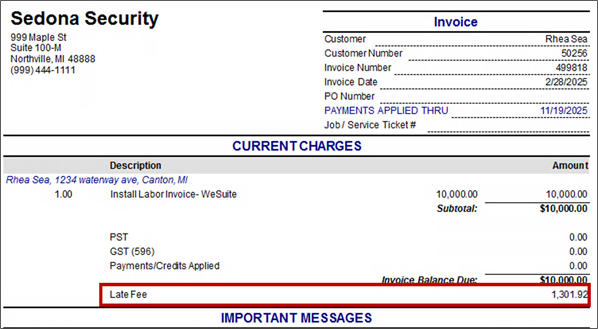
How to get late fees to calculate and display for a specific invoice -
- Pull up the customer’s account
- Double click on the invoice you wish to send to the customer
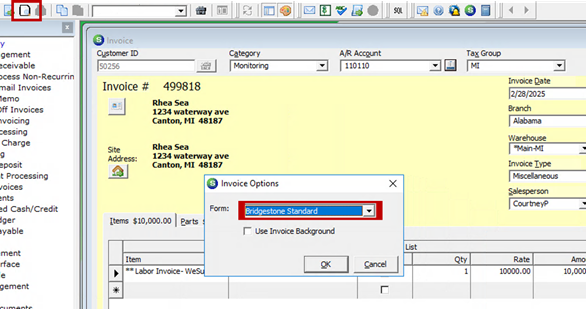
- Click the Print Preview button in the top icon bar of SedonaOffice (a white paper with a magnifying glass in the corner)
- Not all invoice forms give the option to show invoice level late fees, so make sure to select one that does. In this example Bridgestone Standard was used.
5. Since we are trying to print an invoice level late fee, we first have to make sure the statement level late fee option is off. To do this navigate to the Statement Details tab in the Printing Preferences window and make sure the Include Statement Option is NOT checked.

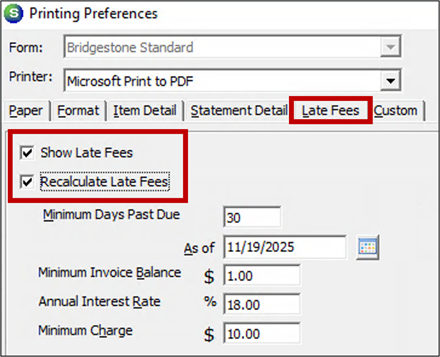
6. Next, navigate to the Late Fees tab and check the box for Show Late Fees AND the box for Recalculate Late Fees and click OK
7. If the invoice qualified for a late fee according to the criteria, then the invoice level late fee will display on the invoice preview as in the example below –